Get dingtalk-workspace-cli on Windows, macOS or Linux Now!
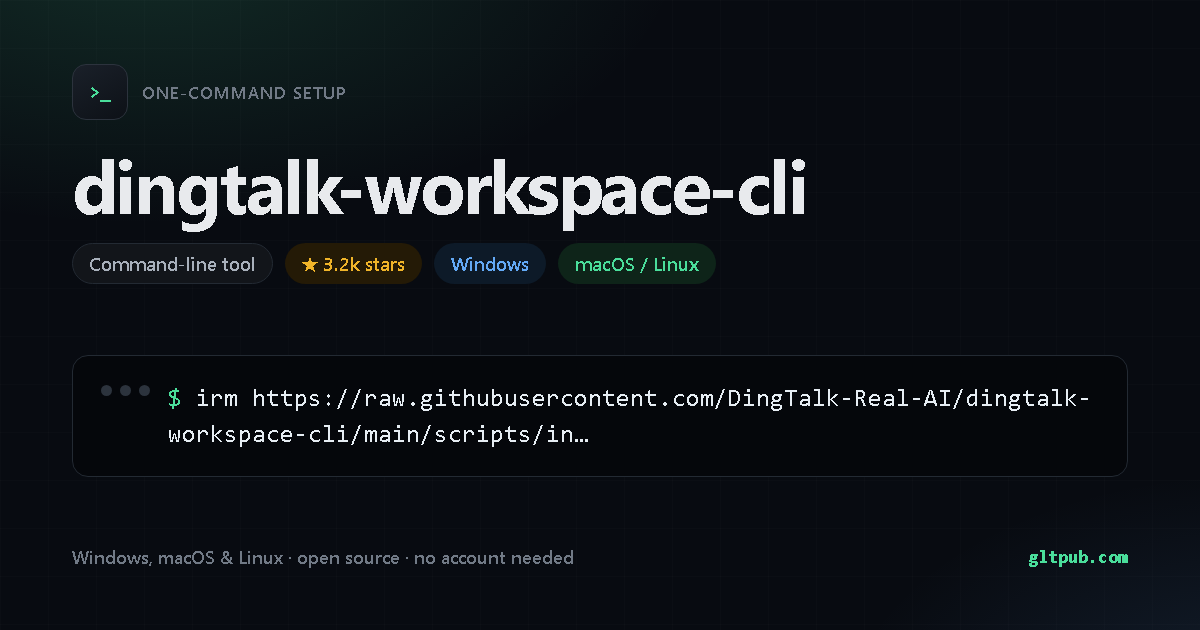
Get dingtalk-workspace-cli with one command
Pick your system, reveal the step-by-step guide, copy the command, paste it into your terminal and press Enter. This command was taken from the project's own documentation and checked against it.
Not available for Windows yet.
dingtalk-workspace-cli doesn't publish an install command for Windows anywhere we can verify, so there's nothing for us to show you. We won't invent one. It does document one for macOS and Linux — switch to that tab.
Pastes into PowerShell and installs dingtalk-workspace-cli on your Windows machine in one step — no manual setup, no build tools. It fetches the project's own install script and runs it, which is the standard way these tools ship — worth a read if you like to know what's running.
Not available for macOS yet.
dingtalk-workspace-cli doesn't publish an install command for macOS or Linux anywhere we can verify, so there's nothing for us to show you. We won't invent one. It does document one for Windows — switch to that tab.
Pastes into your terminal and installs dingtalk-workspace-cli on your macOS or Linux machine in one step — no manual setup, no build tools. It fetches the project's own install script and runs it, which is the standard way these tools ship — worth a read if you like to know what's running.
How to set up dingtalk-workspace-cli, step by step
On Windows, open PowerShell (press Win, type PowerShell, hit Enter) and paste the command. On macOS or Linux, open Terminal — on a Mac it's in Applications ▸ Utilities, or press Cmd+Space and type Terminal — and paste the command there.
Run dingtalk-workspace-cli --help to see the available commands, and
dingtalk-workspace-cli --version to confirm the install worked. If your shell complains about
permissions, that project usually documents a corrected command on its own site.
This asks PowerShell to download a small installer script from the project, then execute it in memory. Nothing is saved to disk. The script is the project's own, but it's worth reading it first — that's why there's a note above.
dingtalk-workspace-cli at a glance
- Installs with a single
command —
PowerShell one-liner (irm | iex). - Installs on Windows and macOS / Linux.
- Free and open source, with no paid tier and no account needed.
- Command checked against the project's README, not just a search snippet.
- 3.2k stars — an actively used project.
dingtalk-workspace-cli doesn't publish a feature list we can quote, so this is what we verified ourselves.
About dingtalk-workspace-cli
dingtalk-workspace-cli is an open-source developer tool.
| Category | Command-line tool |
|---|---|
| Install method | PowerShell one-liner (irm | iex) |
| Windows | documented install command available |
| macOS / Linux | documented install command available |
| Price | Free and open source |
| Command verified | Yes — checked against the project README |
| Popularity | 3.2k stars on the project's public repository |
On mobile
dingtalk-workspace-cli is a command-line tool, so there is no phone app for it — a phone has no shell to run it in. You'll need a desktop, or a remote shell into a machine that has one.
dingtalk-workspace-cli is developed by its own authors. This page is an independent reference; we are not affiliated with or sponsored by the project. The command shown here was reproduced from the project's public documentation — always check the project's own documentation before running anything.